> ## Documentation Index
> Fetch the complete documentation index at: https://docs-dev-update-anonymous-sessons-ea.mintlify.site/llms.txt
> Use this file to discover all available pages before exploring further.

> Auth0 Dashboard を使用して、Auth0 テナントの Customer Managed Keys (BYOK) を有効化および設定します。

# Auth0 Dashboard を使用して Customer Managed Keys を設定する

Auth0 は、エンベロープ暗号化のキー階層の最上位にある Auth0 Environment Root Key を使用して、テナントのシークレットとデータを保護しています。Auth0 Environment Root Key と 顧客提供ルートキー は、対応する Auth0 Cloud Service Provider である AWS または Azure のハードウェアセキュリティモジュール (HSM) に保存されます。

<h2 id="bring-your-own-key">
  Bring Your Own Key
</h2>

Bring Your Own Key を使用すると、[Key Management Editor role](/docs/ja-jp/get-started/manage-dashboard-access/add-dashboard-users) を持つユーザーは、<Tooltip tip="Auth0 Dashboard: サービスを設定するための Auth0 の主要製品。" cta="用語集を見る" href="/docs/ja-jp/glossary?term=Auth0+Dashboard">Auth0 Dashboard</Tooltip> から、既定の Auth0 Environment Root Key を自身の 顧客提供ルートキー に置き換えることができます。

顧客は、自身の暗号化マテリアルを含む独自の Root Key を安全にアップロードすることで、次のことが可能になります。

* Environment Root Key に対する独自のキー生成要件および来歴要件を満たす。
* Environment Root Key に対する特定のキー導入要件または有効期間要件を満たす。

<Warning>
  Bring Your Own Key を使用して独自の 顧客提供ルートキー をインポートすると、その削除を除き、顧客提供ルートキー のライフサイクル管理を Auth0 に委ねないことになります。
</Warning>

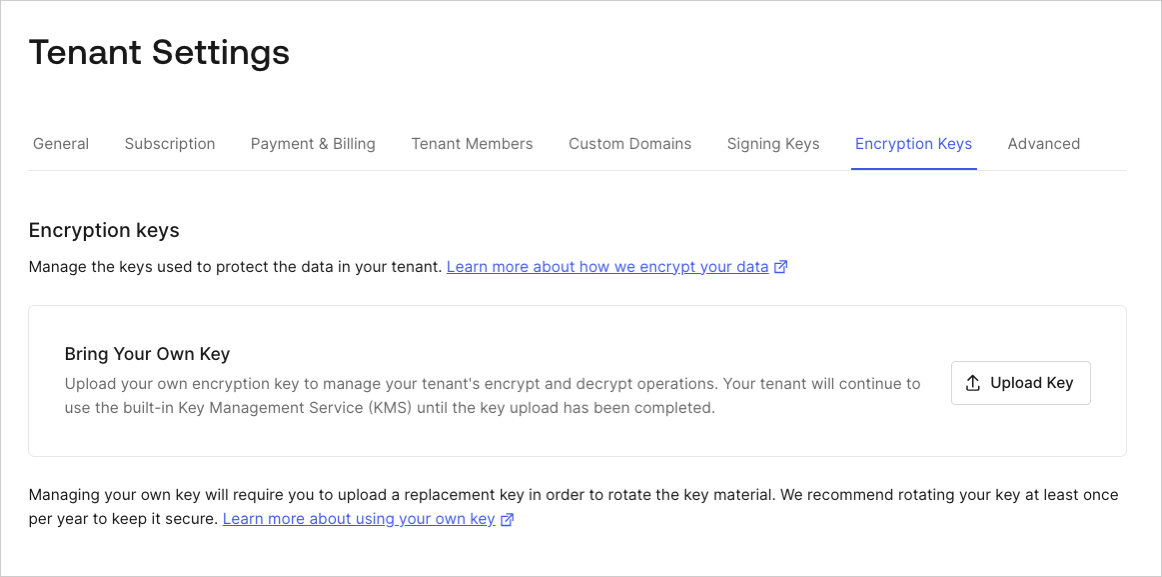
開始するには、Auth0 Dashboard > 設定 > Encryption Keys に移動します
<Frame>
  <img src="https://mintcdn.com/docs-dev-update-anonymous-sessons-ea/czdjV-SUOhULdyD1/docs/images/cdy7uua7fh8z/1qmfCSl7cOugrHIAdxSyAt/6c7d7185920e61809d9423c8e3d4c4f2/Encryption_Keys_-_EN.png?fit=max&auto=format&n=czdjV-SUOhULdyD1&q=85&s=b863a1c4e6e6b8d356b20a2851495ce9" alt="Auth0 Dashboard > 設定 > Encryption Keys" data-og-width="1162" width="1162" data-og-height="577" height="577" data-path="docs/images/cdy7uua7fh8z/1qmfCSl7cOugrHIAdxSyAt/6c7d7185920e61809d9423c8e3d4c4f2/Encryption_Keys_-_EN.png" data-optimize="true" data-opv="3" srcset="https://mintcdn.com/docs-dev-update-anonymous-sessons-ea/czdjV-SUOhULdyD1/docs/images/cdy7uua7fh8z/1qmfCSl7cOugrHIAdxSyAt/6c7d7185920e61809d9423c8e3d4c4f2/Encryption_Keys_-_EN.png?w=280&fit=max&auto=format&n=czdjV-SUOhULdyD1&q=85&s=a14edb72da7b6a934db7bd5ebc2f23ff 280w, https://mintcdn.com/docs-dev-update-anonymous-sessons-ea/czdjV-SUOhULdyD1/docs/images/cdy7uua7fh8z/1qmfCSl7cOugrHIAdxSyAt/6c7d7185920e61809d9423c8e3d4c4f2/Encryption_Keys_-_EN.png?w=560&fit=max&auto=format&n=czdjV-SUOhULdyD1&q=85&s=c0dab20aff60dcc4ae44bf958e1095dd 560w, https://mintcdn.com/docs-dev-update-anonymous-sessons-ea/czdjV-SUOhULdyD1/docs/images/cdy7uua7fh8z/1qmfCSl7cOugrHIAdxSyAt/6c7d7185920e61809d9423c8e3d4c4f2/Encryption_Keys_-_EN.png?w=840&fit=max&auto=format&n=czdjV-SUOhULdyD1&q=85&s=aa1d32ef44986234fb2ec7fbe43d6d5d 840w, https://mintcdn.com/docs-dev-update-anonymous-sessons-ea/czdjV-SUOhULdyD1/docs/images/cdy7uua7fh8z/1qmfCSl7cOugrHIAdxSyAt/6c7d7185920e61809d9423c8e3d4c4f2/Encryption_Keys_-_EN.png?w=1100&fit=max&auto=format&n=czdjV-SUOhULdyD1&q=85&s=03a2817b6712573a30cf5b31177abaa5 1100w, https://mintcdn.com/docs-dev-update-anonymous-sessons-ea/czdjV-SUOhULdyD1/docs/images/cdy7uua7fh8z/1qmfCSl7cOugrHIAdxSyAt/6c7d7185920e61809d9423c8e3d4c4f2/Encryption_Keys_-_EN.png?w=1650&fit=max&auto=format&n=czdjV-SUOhULdyD1&q=85&s=8262ea359bfc253b8f68ddf99e85ee5e 1650w, https://mintcdn.com/docs-dev-update-anonymous-sessons-ea/czdjV-SUOhULdyD1/docs/images/cdy7uua7fh8z/1qmfCSl7cOugrHIAdxSyAt/6c7d7185920e61809d9423c8e3d4c4f2/Encryption_Keys_-_EN.png?w=2500&fit=max&auto=format&n=czdjV-SUOhULdyD1&q=85&s=7d67eecb067483c1c67eb333b8cd65fc 2500w" />
</Frame>

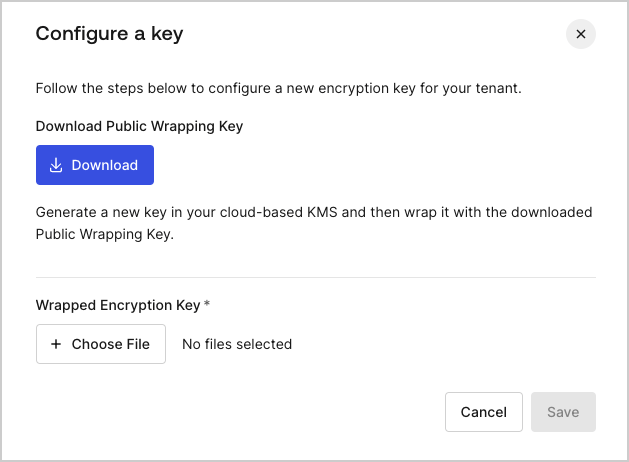
**Upload Key** を選択して、顧客提供ルートキー のインポートプロセスを開始します。すると、インポートダイアログが開きます。
<Frame>
  <img src="https://mintcdn.com/docs-dev-update-anonymous-sessons-ea/czdjV-SUOhULdyD1/docs/images/cdy7uua7fh8z/1GJPgT1Be7Wm6G6ldCVW4q/96e5a326aa643f29bb50aea76fce27aa/image__2_.png?fit=max&auto=format&n=czdjV-SUOhULdyD1&q=85&s=c7adca867cbd8552dba473f6dbdbea16" alt="Auth0 Dashboard > 設定 > Encryption Keys > Upload" data-og-width="629" width="629" data-og-height="462" height="462" data-path="docs/images/cdy7uua7fh8z/1GJPgT1Be7Wm6G6ldCVW4q/96e5a326aa643f29bb50aea76fce27aa/image__2_.png" data-optimize="true" data-opv="3" srcset="https://mintcdn.com/docs-dev-update-anonymous-sessons-ea/czdjV-SUOhULdyD1/docs/images/cdy7uua7fh8z/1GJPgT1Be7Wm6G6ldCVW4q/96e5a326aa643f29bb50aea76fce27aa/image__2_.png?w=280&fit=max&auto=format&n=czdjV-SUOhULdyD1&q=85&s=e45a07c748109a6c69d73f238af0ef95 280w, https://mintcdn.com/docs-dev-update-anonymous-sessons-ea/czdjV-SUOhULdyD1/docs/images/cdy7uua7fh8z/1GJPgT1Be7Wm6G6ldCVW4q/96e5a326aa643f29bb50aea76fce27aa/image__2_.png?w=560&fit=max&auto=format&n=czdjV-SUOhULdyD1&q=85&s=a46dc17212ebd21292849d30d40ade25 560w, https://mintcdn.com/docs-dev-update-anonymous-sessons-ea/czdjV-SUOhULdyD1/docs/images/cdy7uua7fh8z/1GJPgT1Be7Wm6G6ldCVW4q/96e5a326aa643f29bb50aea76fce27aa/image__2_.png?w=840&fit=max&auto=format&n=czdjV-SUOhULdyD1&q=85&s=2569f055540b60736e9a298f8ecdfc6b 840w, https://mintcdn.com/docs-dev-update-anonymous-sessons-ea/czdjV-SUOhULdyD1/docs/images/cdy7uua7fh8z/1GJPgT1Be7Wm6G6ldCVW4q/96e5a326aa643f29bb50aea76fce27aa/image__2_.png?w=1100&fit=max&auto=format&n=czdjV-SUOhULdyD1&q=85&s=de22ac2c54e82484534fc11cf12d2877 1100w, https://mintcdn.com/docs-dev-update-anonymous-sessons-ea/czdjV-SUOhULdyD1/docs/images/cdy7uua7fh8z/1GJPgT1Be7Wm6G6ldCVW4q/96e5a326aa643f29bb50aea76fce27aa/image__2_.png?w=1650&fit=max&auto=format&n=czdjV-SUOhULdyD1&q=85&s=bd4c1c1d258ad48d13d8664353b575d8 1650w, https://mintcdn.com/docs-dev-update-anonymous-sessons-ea/czdjV-SUOhULdyD1/docs/images/cdy7uua7fh8z/1GJPgT1Be7Wm6G6ldCVW4q/96e5a326aa643f29bb50aea76fce27aa/image__2_.png?w=2500&fit=max&auto=format&n=czdjV-SUOhULdyD1&q=85&s=e0e31e77be40e95c1540064b7a81ee8d 2500w" />
</Frame>

**Upload Key** を選択してから **Download** を選択すると、Bring Your Own Key プロセスが開始されます。

1. 公開ラッピングキーを作成し、お使いのシステムにダウンロードします。
2. 公開ラッピングキーを使用して、独自のキー管理システムで自身の暗号化マテリアルをラップし、Wrapped Encryption Key (顧客提供ルートキー) を作成します。
3. Wrapped Encryption Key をアップロードし、**Save** を選択します。

<Callout icon="file-lines" color="#0EA5E9" iconType="regular">
  Wrapped Encryption Key をアップロードすると、ハードウェアセキュリティモジュール (AWS または Azure) 内で、Auth0 Environment Root Key が 顧客提供ルートキー に置き換えられます。
</Callout>

<h2 id="cryptographic-material-requirements">
  暗号マテリアルの要件
</h2>

キー管理システムを使用して、公開ラッピングキーで独自の暗号マテリアルをラップし、Wrapped Encryption Key を作成してください。Auth0 Cloud Service Provider (AWS または Azure) に応じて、[CKM\_RSA\_AES\_KEY\_WRAP](https://docs.oasis-open.org/pkcs11/pkcs11-curr/v2.40/cos01/pkcs11-curr-v2.40-cos01.html#_Toc408226894) アルゴリズムのパラメーターには以下の設定を使用してください。

<h3 id="auth0-on-aws-cloud">
  AWS クラウド上の Auth0
</h3>

* 公開ラッピングキーの長さ: 3072 ビット
* アルゴリズム: CKG\_MGF1\_SHA256
* CKM\_AES\_KEY\_WRAP\_PAD 用の一時 AES キーの長さ: 256 ビット
* 顧客提供ルートキーの種類: 256 ビット長の AES 対称キー

<h3 id="auth0-on-azure-cloud">
  Azure クラウドの Auth0
</h3>

* 公開ラッピングキーの長さ: 2048 ビット
* アルゴリズム: CKG\_MGF1\_SHA-1
* CKM\_AES\_KEY\_WRAP\_PAD 用の一時 AES キーの長さ: 256 ビット
* 顧客提供ルートキー のタイプ: 2048 ビット長の RSA 秘密キー
* 秘密キーのエンコーディング: PKCS #8 - ASN.1 DER
