> ## Documentation Index
> Fetch the complete documentation index at: https://docs-dev-update-anonymous-sessons-ea.mintlify.site/llms.txt
> Use this file to discover all available pages before exploring further.

> Forms のランタイム中に参照できるよう、Flows 連携の資格情報を Vault に保存する方法を説明します。

# Vault

Vault を使用すると、外部サービスや連携機能へのリクエストを認証するためのシークレットや共通設定 (例: API キー、<Tooltip tip="アクセストークン: API にアクセスするために使用される、不透明な文字列または JWT の形式の認証資格情報。" cta="用語集を見る" href="/docs/ja-jp/glossary?term=access+tokens">アクセストークン</Tooltip>、<Tooltip tip="アクセストークン: API にアクセスするために使用される、不透明な文字列または JWT の形式の認証資格情報。" cta="用語集を見る" href="/docs/ja-jp/glossary?term=refresh+tokens">リフレッシュトークン</Tooltip>) を、Vault 接続として安全に保存できます。

<Callout icon="file-lines" color="#0EA5E9" iconType="regular">
  * 接続によっては、ユーザーが認証情報を提供する必要があります (たとえば、machine-to-machine (M2M) アプリケーションを使用する Auth0 では、有効期限付きのアクセストークンとリフレッシュトークンを生成します) 。接続にはこれら両方のトークンが保存され、アクセストークンの有効期限が切れる前に新しいアクセストークンが生成されます。
  * 外部サービスによっては、API 認証情報を生成するためにスコープの承認が必要です。スコープを変更した場合は、接続の問題を避けるため、それらのサービスへの接続も更新してください。
  * 接続を追加すると、すぐにフローで使用できます。既存の接続に対する更新は、すべて自動的に反映されます。
</Callout>

<h2 id="create-and-modify-vault-connections">
  Vault 接続の作成と変更
</h2>

Vault ページ、またはアクションで認証情報が必要な場合はフローエディターから、Vault 接続を作成および変更できます。

<h3 id="create-vault-connections-from-the-vault-page">
  Vault ページから Vault 接続を作成する
</h3>

次の手順に従って、Vault ページから Vault 接続を追加します。

1. **Auth0 Dashboard > Actions > Forms** を選択して、フォームエディターを開きます。
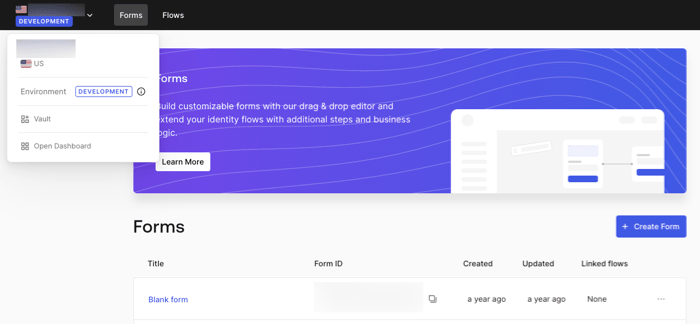
2. 左上にあるテナントメニューを選択し、**Vault** を選択して Vault ページを開きます。
   <Frame>
     <img src="https://mintcdn.com/docs-dev-update-anonymous-sessons-ea/czdjV-SUOhULdyD1/docs/images/cdy7uua7fh8z/1sPNPKO6nuEDCuiYGRWSur/d85dc616170eaf2d7d5f321750863ccf/vault-connection.png?fit=max&auto=format&n=czdjV-SUOhULdyD1&q=85&s=a036a8a0bcffc11cb04db4b1d13e6304" alt="Dashboard > Forms > Vault" data-og-width="700" width="700" data-og-height="324" height="324" data-path="docs/images/cdy7uua7fh8z/1sPNPKO6nuEDCuiYGRWSur/d85dc616170eaf2d7d5f321750863ccf/vault-connection.png" data-optimize="true" data-opv="3" srcset="https://mintcdn.com/docs-dev-update-anonymous-sessons-ea/czdjV-SUOhULdyD1/docs/images/cdy7uua7fh8z/1sPNPKO6nuEDCuiYGRWSur/d85dc616170eaf2d7d5f321750863ccf/vault-connection.png?w=280&fit=max&auto=format&n=czdjV-SUOhULdyD1&q=85&s=8955621c19091337b9bef957afa2f7a3 280w, https://mintcdn.com/docs-dev-update-anonymous-sessons-ea/czdjV-SUOhULdyD1/docs/images/cdy7uua7fh8z/1sPNPKO6nuEDCuiYGRWSur/d85dc616170eaf2d7d5f321750863ccf/vault-connection.png?w=560&fit=max&auto=format&n=czdjV-SUOhULdyD1&q=85&s=ffe32147ec89c1f6174e7820eff4f45b 560w, https://mintcdn.com/docs-dev-update-anonymous-sessons-ea/czdjV-SUOhULdyD1/docs/images/cdy7uua7fh8z/1sPNPKO6nuEDCuiYGRWSur/d85dc616170eaf2d7d5f321750863ccf/vault-connection.png?w=840&fit=max&auto=format&n=czdjV-SUOhULdyD1&q=85&s=f547acd367f81d224b870cbfbf9e0a16 840w, https://mintcdn.com/docs-dev-update-anonymous-sessons-ea/czdjV-SUOhULdyD1/docs/images/cdy7uua7fh8z/1sPNPKO6nuEDCuiYGRWSur/d85dc616170eaf2d7d5f321750863ccf/vault-connection.png?w=1100&fit=max&auto=format&n=czdjV-SUOhULdyD1&q=85&s=cf98772d631f2e34d7b875bbfcc07c37 1100w, https://mintcdn.com/docs-dev-update-anonymous-sessons-ea/czdjV-SUOhULdyD1/docs/images/cdy7uua7fh8z/1sPNPKO6nuEDCuiYGRWSur/d85dc616170eaf2d7d5f321750863ccf/vault-connection.png?w=1650&fit=max&auto=format&n=czdjV-SUOhULdyD1&q=85&s=a79e76a5ed06f0a371106a38dc823b46 1650w, https://mintcdn.com/docs-dev-update-anonymous-sessons-ea/czdjV-SUOhULdyD1/docs/images/cdy7uua7fh8z/1sPNPKO6nuEDCuiYGRWSur/d85dc616170eaf2d7d5f321750863ccf/vault-connection.png?w=2500&fit=max&auto=format&n=czdjV-SUOhULdyD1&q=85&s=90ced88f0a8befdb76ebc9fd66f1ac50 2500w" />
   </Frame>
3. **Add Vault Connection** を選択します。
4. 目的のアクションを選択し、**Continue** を選択します。
5. Vault の **Connection name** を入力し、**Continue** を選択します。
6. 認証情報を入力します。
   必要な認証情報がない場合は、**Create an empty connection** を選択して、後で認証情報を追加できます。空の接続には、認証情報が不足していることを示すオレンジ色のアイコンが表示されます。
7. **Add Vault Connection** を選択します。

<h3 id="create-vault-connections-from-the-flow-editor">
  フローエディターから Vault 接続を作成する
</h3>

次の手順に従って、フローアクションから Vault 接続を追加します。ここでは、Twilio を例に説明します。

1. **Auth0 Dashboard > Actions > Forms > Flows** を選択して、フローエディターを開きます。
2. フローを選択し、**Send SMS with Twilio** アクションを追加します。
3. アクションの **Vault connection** 設定で、**+** アイコンを選択します。

   <Frame>
     <img src="https://mintcdn.com/docs-dev-update-anonymous-sessons-ea/m0-AO2O2TdPOhCeE/docs/images/cdy7uua7fh8z/1AsaznhRKxm5LZxPlcbfUw/10e5a8af700aab909f5b03fcd266da7e/twilio-vault-connection.png?fit=max&auto=format&n=m0-AO2O2TdPOhCeE&q=85&s=2d4b358c7d8e44607d72d3086df25f80" alt="Dashboard > Forms > Vault " data-og-width="1104" width="1104" data-og-height="191" height="191" data-path="docs/images/cdy7uua7fh8z/1AsaznhRKxm5LZxPlcbfUw/10e5a8af700aab909f5b03fcd266da7e/twilio-vault-connection.png" data-optimize="true" data-opv="3" srcset="https://mintcdn.com/docs-dev-update-anonymous-sessons-ea/m0-AO2O2TdPOhCeE/docs/images/cdy7uua7fh8z/1AsaznhRKxm5LZxPlcbfUw/10e5a8af700aab909f5b03fcd266da7e/twilio-vault-connection.png?w=280&fit=max&auto=format&n=m0-AO2O2TdPOhCeE&q=85&s=8d4d275ad2e009013c7c0e946f5e5748 280w, https://mintcdn.com/docs-dev-update-anonymous-sessons-ea/m0-AO2O2TdPOhCeE/docs/images/cdy7uua7fh8z/1AsaznhRKxm5LZxPlcbfUw/10e5a8af700aab909f5b03fcd266da7e/twilio-vault-connection.png?w=560&fit=max&auto=format&n=m0-AO2O2TdPOhCeE&q=85&s=fce5592a196e1e705c8f3b2411884cd8 560w, https://mintcdn.com/docs-dev-update-anonymous-sessons-ea/m0-AO2O2TdPOhCeE/docs/images/cdy7uua7fh8z/1AsaznhRKxm5LZxPlcbfUw/10e5a8af700aab909f5b03fcd266da7e/twilio-vault-connection.png?w=840&fit=max&auto=format&n=m0-AO2O2TdPOhCeE&q=85&s=12fce389bd94fdd68785bfec670d26b6 840w, https://mintcdn.com/docs-dev-update-anonymous-sessons-ea/m0-AO2O2TdPOhCeE/docs/images/cdy7uua7fh8z/1AsaznhRKxm5LZxPlcbfUw/10e5a8af700aab909f5b03fcd266da7e/twilio-vault-connection.png?w=1100&fit=max&auto=format&n=m0-AO2O2TdPOhCeE&q=85&s=7bd55ca011a2cf7feed8601fac7e60b2 1100w, https://mintcdn.com/docs-dev-update-anonymous-sessons-ea/m0-AO2O2TdPOhCeE/docs/images/cdy7uua7fh8z/1AsaznhRKxm5LZxPlcbfUw/10e5a8af700aab909f5b03fcd266da7e/twilio-vault-connection.png?w=1650&fit=max&auto=format&n=m0-AO2O2TdPOhCeE&q=85&s=4341e4b920ac4cac72879418555adbc8 1650w, https://mintcdn.com/docs-dev-update-anonymous-sessons-ea/m0-AO2O2TdPOhCeE/docs/images/cdy7uua7fh8z/1AsaznhRKxm5LZxPlcbfUw/10e5a8af700aab909f5b03fcd266da7e/twilio-vault-connection.png?w=2500&fit=max&auto=format&n=m0-AO2O2TdPOhCeE&q=85&s=52eab2345d7b0d89150fb76d698ff3ce 2500w" />
   </Frame>
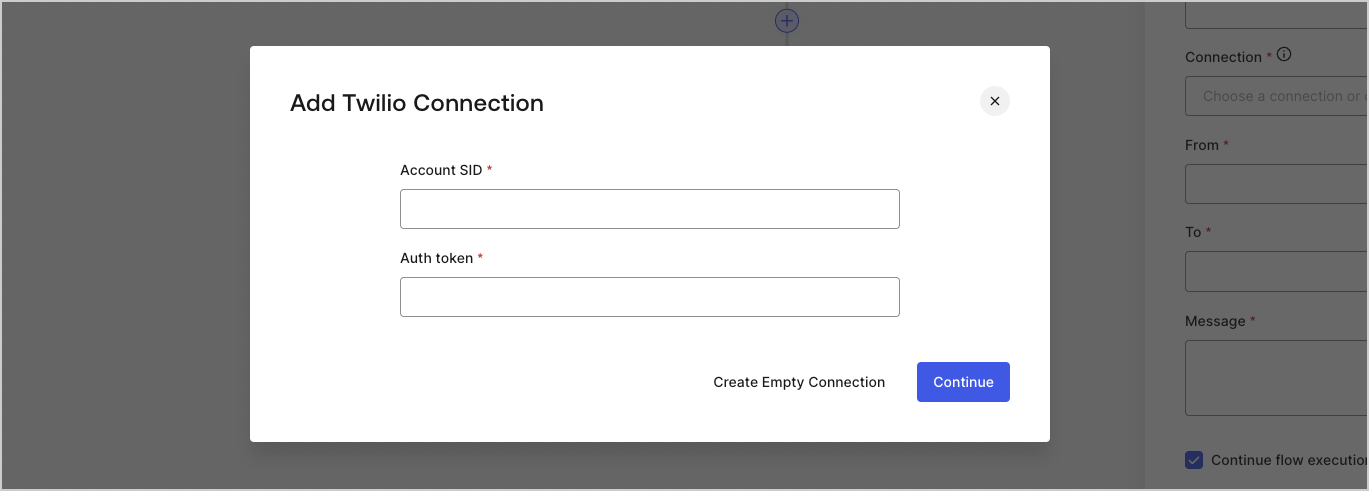
4. Vault の **Connection name** を入力し、**Continue** を選択します。
5. 認証情報を入力します。
   必要な認証情報がない場合は、**Create an empty connection** を選択して、後で認証情報を追加できます。空の接続には、認証情報が不足していることを示すオレンジ色のアイコンが表示されます。
   <Frame>
     <img src="https://mintcdn.com/docs-dev-update-anonymous-sessons-ea/dFAqG_SoeOw4N9CZ/docs/images/cdy7uua7fh8z/yobXanutPRCO3FWek8cOk/bc29e39fb8593cff35e2738234bfe6fe/twilio-vault-settings.png?fit=max&auto=format&n=dFAqG_SoeOw4N9CZ&q=85&s=c734ba5a4935df6852cb13354f0f70a8" alt="Dashboard > Forms > Vault > Twilio connection settings" data-og-width="1369" width="1369" data-og-height="491" height="491" data-path="docs/images/cdy7uua7fh8z/yobXanutPRCO3FWek8cOk/bc29e39fb8593cff35e2738234bfe6fe/twilio-vault-settings.png" data-optimize="true" data-opv="3" srcset="https://mintcdn.com/docs-dev-update-anonymous-sessons-ea/dFAqG_SoeOw4N9CZ/docs/images/cdy7uua7fh8z/yobXanutPRCO3FWek8cOk/bc29e39fb8593cff35e2738234bfe6fe/twilio-vault-settings.png?w=280&fit=max&auto=format&n=dFAqG_SoeOw4N9CZ&q=85&s=9ab10426c28088c8691689d31b1946c4 280w, https://mintcdn.com/docs-dev-update-anonymous-sessons-ea/dFAqG_SoeOw4N9CZ/docs/images/cdy7uua7fh8z/yobXanutPRCO3FWek8cOk/bc29e39fb8593cff35e2738234bfe6fe/twilio-vault-settings.png?w=560&fit=max&auto=format&n=dFAqG_SoeOw4N9CZ&q=85&s=b6a9cd3988cfe9b2c32d1d938aa01808 560w, https://mintcdn.com/docs-dev-update-anonymous-sessons-ea/dFAqG_SoeOw4N9CZ/docs/images/cdy7uua7fh8z/yobXanutPRCO3FWek8cOk/bc29e39fb8593cff35e2738234bfe6fe/twilio-vault-settings.png?w=840&fit=max&auto=format&n=dFAqG_SoeOw4N9CZ&q=85&s=09c776cf96380fe509b7367062e78ceb 840w, https://mintcdn.com/docs-dev-update-anonymous-sessons-ea/dFAqG_SoeOw4N9CZ/docs/images/cdy7uua7fh8z/yobXanutPRCO3FWek8cOk/bc29e39fb8593cff35e2738234bfe6fe/twilio-vault-settings.png?w=1100&fit=max&auto=format&n=dFAqG_SoeOw4N9CZ&q=85&s=5c8ce4c018efdab340bdf99b5cde9556 1100w, https://mintcdn.com/docs-dev-update-anonymous-sessons-ea/dFAqG_SoeOw4N9CZ/docs/images/cdy7uua7fh8z/yobXanutPRCO3FWek8cOk/bc29e39fb8593cff35e2738234bfe6fe/twilio-vault-settings.png?w=1650&fit=max&auto=format&n=dFAqG_SoeOw4N9CZ&q=85&s=b67530c6db2b9ca126a418e1bd636025 1650w, https://mintcdn.com/docs-dev-update-anonymous-sessons-ea/dFAqG_SoeOw4N9CZ/docs/images/cdy7uua7fh8z/yobXanutPRCO3FWek8cOk/bc29e39fb8593cff35e2738234bfe6fe/twilio-vault-settings.png?w=2500&fit=max&auto=format&n=dFAqG_SoeOw4N9CZ&q=85&s=93080d4b3a5ef77f7aefa067a35a24e1 2500w" />
   </Frame>
6. **Add Vault Connection** を選択します。
