> ## Documentation Index
> Fetch the complete documentation index at: https://docs-dev-update-anonymous-sessons-ea.mintlify.site/llms.txt
> Use this file to discover all available pages before exploring further.

> Forms for Actions を使用してプログレッシブプロファイルフォームを設定する方法を学びます

# ユースケース: Forms を使用してプログレッシブプロファイルフォームを設定する

<Card title="開始前に">
  1. 次のスコープを有効にした [Machine-to-Machine Application](/docs/ja-jp/get-started/auth0-overview/create-applications/machine-to-machine-apps) を作成します。

  * `read:users`
  * `update:users`
  * `create:users`
  * `read:users_app_metadata`
  * `update:users_app_metadata`
  * `create:users_app_metadata`

  2. M2M アプリケーションの認証情報を使用して [Vault 接続](/docs/ja-jp/customize/forms/vault) を追加します。
</Card>

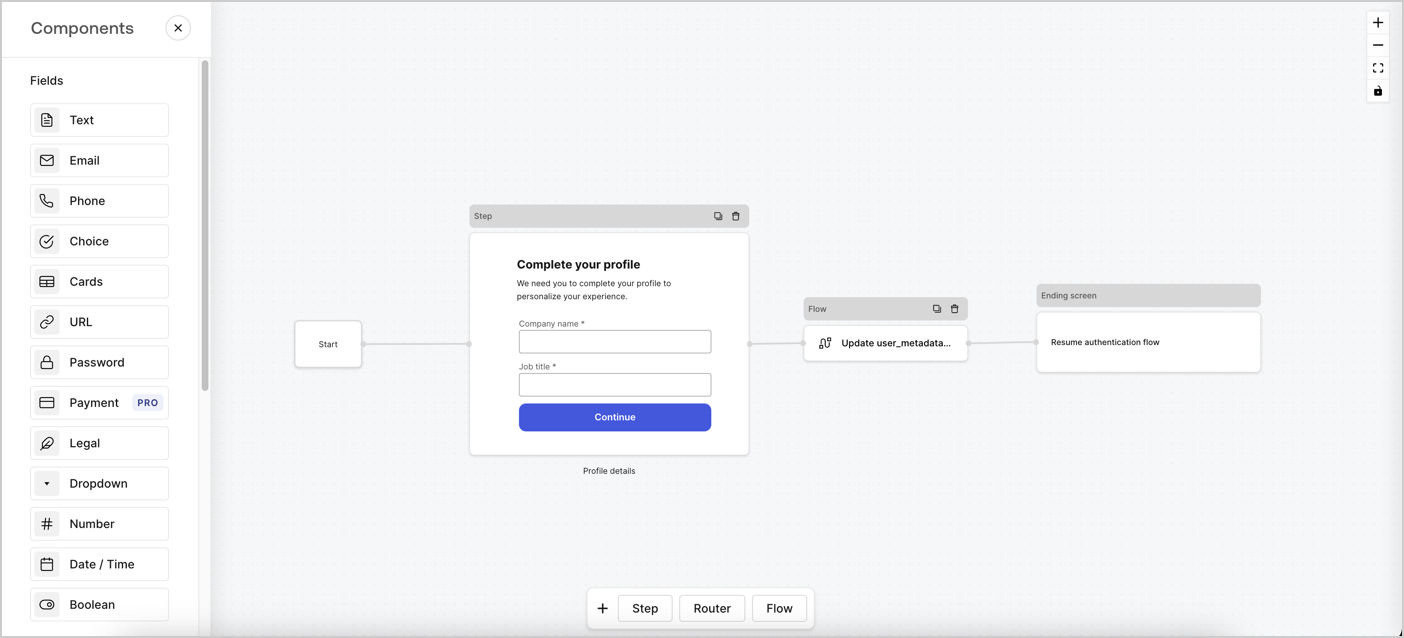
Forms for Actions では、会社名や役職などの不足している情報を収集するために、どのタイミングでユーザーに入力を促すかを判断するプログレッシブプロファイリングフローを作成し、それらを `user_metadata` 属性として保存できます。
<Frame>
  <img src="https://mintcdn.com/docs-dev-update-anonymous-sessons-ea/dFAqG_SoeOw4N9CZ/docs/images/cdy7uua7fh8z/xUx9YmnHvnAqL19JvNtNP/60dae88f893d4ebe8e3523421e960596/Progressive-profle-overview.png?fit=max&auto=format&n=dFAqG_SoeOw4N9CZ&q=85&s=ae98ba39af234c8cf7e2b1076b6b5ae0" alt="Dashboard > Actions > Forms > Form" data-og-width="1404" width="1404" data-og-height="638" height="638" data-path="docs/images/cdy7uua7fh8z/xUx9YmnHvnAqL19JvNtNP/60dae88f893d4ebe8e3523421e960596/Progressive-profle-overview.png" data-optimize="true" data-opv="3" srcset="https://mintcdn.com/docs-dev-update-anonymous-sessons-ea/dFAqG_SoeOw4N9CZ/docs/images/cdy7uua7fh8z/xUx9YmnHvnAqL19JvNtNP/60dae88f893d4ebe8e3523421e960596/Progressive-profle-overview.png?w=280&fit=max&auto=format&n=dFAqG_SoeOw4N9CZ&q=85&s=8249c26ee33411e25365f5f396cae6eb 280w, https://mintcdn.com/docs-dev-update-anonymous-sessons-ea/dFAqG_SoeOw4N9CZ/docs/images/cdy7uua7fh8z/xUx9YmnHvnAqL19JvNtNP/60dae88f893d4ebe8e3523421e960596/Progressive-profle-overview.png?w=560&fit=max&auto=format&n=dFAqG_SoeOw4N9CZ&q=85&s=f07ae6e0ec6afdf8b12ee7d594de4af7 560w, https://mintcdn.com/docs-dev-update-anonymous-sessons-ea/dFAqG_SoeOw4N9CZ/docs/images/cdy7uua7fh8z/xUx9YmnHvnAqL19JvNtNP/60dae88f893d4ebe8e3523421e960596/Progressive-profle-overview.png?w=840&fit=max&auto=format&n=dFAqG_SoeOw4N9CZ&q=85&s=7f444a2cb37676b04adb2d379557ba85 840w, https://mintcdn.com/docs-dev-update-anonymous-sessons-ea/dFAqG_SoeOw4N9CZ/docs/images/cdy7uua7fh8z/xUx9YmnHvnAqL19JvNtNP/60dae88f893d4ebe8e3523421e960596/Progressive-profle-overview.png?w=1100&fit=max&auto=format&n=dFAqG_SoeOw4N9CZ&q=85&s=3902c6b55c4868e4f5a19061a82f38b6 1100w, https://mintcdn.com/docs-dev-update-anonymous-sessons-ea/dFAqG_SoeOw4N9CZ/docs/images/cdy7uua7fh8z/xUx9YmnHvnAqL19JvNtNP/60dae88f893d4ebe8e3523421e960596/Progressive-profle-overview.png?w=1650&fit=max&auto=format&n=dFAqG_SoeOw4N9CZ&q=85&s=e09779adf7c053c403de757b82011d4d 1650w, https://mintcdn.com/docs-dev-update-anonymous-sessons-ea/dFAqG_SoeOw4N9CZ/docs/images/cdy7uua7fh8z/xUx9YmnHvnAqL19JvNtNP/60dae88f893d4ebe8e3523421e960596/Progressive-profle-overview.png?w=2500&fit=max&auto=format&n=dFAqG_SoeOw4N9CZ&q=85&s=a7587f78d71ed970ceca1da46ac26697 2500w" />
</Frame>

以下のセクションでは、ノードとフローを使用してプログレッシブプロファイルフォームを作成する方法と、そのフォームを [Post Login Action](/docs/ja-jp/customize/actions/explore-triggers/signup-and-login-triggers/login-trigger) に追加する手順について説明します。

<h2 id="create-a-form-from-scratch">
  一からフォームを作成する
</h2>

情報を収集するフォームを作成するには、次の手順に従います。

1. **Auth0 Dashboard > Actions > Forms** を選択して、フォームエディターを開きます。
2. **Create Form** > **Start from scratch** を選択します。

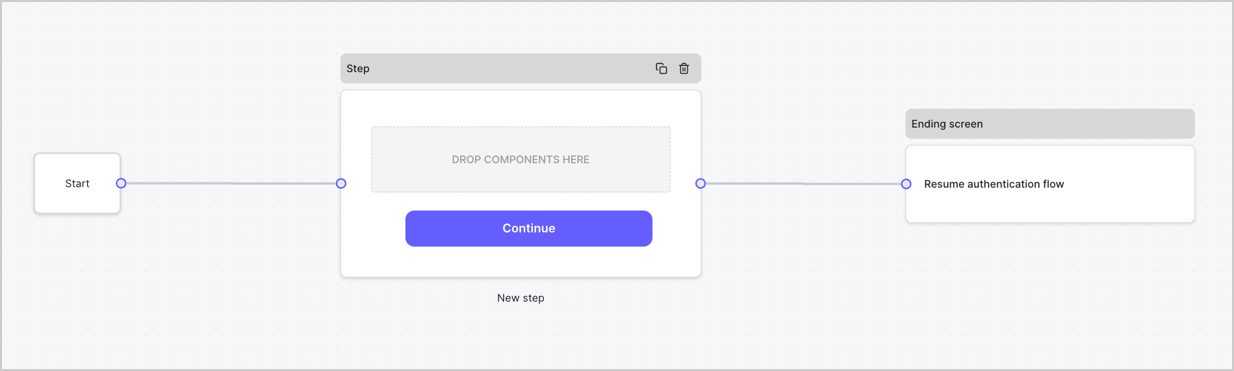
デフォルトでは、新しいフォームには Start ノード、Step ノード、Ending screen ノードが含まれています。
<Frame>
  <img src="https://mintcdn.com/docs-dev-update-anonymous-sessons-ea/itgJjKWPZWQ8PNK-/docs/images/cdy7uua7fh8z/2TZ9jSjgEcARFpULI6hz4R/a4319a1bd482f2ee5cc23100fdb2f42c/New-form-Forms-for-action-use-case.png?fit=max&auto=format&n=itgJjKWPZWQ8PNK-&q=85&s=aa48f96279cc4ec7f9a33bc9c44a260b" alt="Dashboard > Forms > Use Cases > Form" data-og-width="1234" width="1234" data-og-height="371" height="371" data-path="docs/images/cdy7uua7fh8z/2TZ9jSjgEcARFpULI6hz4R/a4319a1bd482f2ee5cc23100fdb2f42c/New-form-Forms-for-action-use-case.png" data-optimize="true" data-opv="3" srcset="https://mintcdn.com/docs-dev-update-anonymous-sessons-ea/itgJjKWPZWQ8PNK-/docs/images/cdy7uua7fh8z/2TZ9jSjgEcARFpULI6hz4R/a4319a1bd482f2ee5cc23100fdb2f42c/New-form-Forms-for-action-use-case.png?w=280&fit=max&auto=format&n=itgJjKWPZWQ8PNK-&q=85&s=1a1720bcaa7c7a53cc86adc03355f588 280w, https://mintcdn.com/docs-dev-update-anonymous-sessons-ea/itgJjKWPZWQ8PNK-/docs/images/cdy7uua7fh8z/2TZ9jSjgEcARFpULI6hz4R/a4319a1bd482f2ee5cc23100fdb2f42c/New-form-Forms-for-action-use-case.png?w=560&fit=max&auto=format&n=itgJjKWPZWQ8PNK-&q=85&s=ab6dd387a5962dcfb4e5d8ba0529ebcd 560w, https://mintcdn.com/docs-dev-update-anonymous-sessons-ea/itgJjKWPZWQ8PNK-/docs/images/cdy7uua7fh8z/2TZ9jSjgEcARFpULI6hz4R/a4319a1bd482f2ee5cc23100fdb2f42c/New-form-Forms-for-action-use-case.png?w=840&fit=max&auto=format&n=itgJjKWPZWQ8PNK-&q=85&s=90bfa4649e4a7503319aa7d6f7c6af55 840w, https://mintcdn.com/docs-dev-update-anonymous-sessons-ea/itgJjKWPZWQ8PNK-/docs/images/cdy7uua7fh8z/2TZ9jSjgEcARFpULI6hz4R/a4319a1bd482f2ee5cc23100fdb2f42c/New-form-Forms-for-action-use-case.png?w=1100&fit=max&auto=format&n=itgJjKWPZWQ8PNK-&q=85&s=f4d2da718e5acf8727c23a45933a52a5 1100w, https://mintcdn.com/docs-dev-update-anonymous-sessons-ea/itgJjKWPZWQ8PNK-/docs/images/cdy7uua7fh8z/2TZ9jSjgEcARFpULI6hz4R/a4319a1bd482f2ee5cc23100fdb2f42c/New-form-Forms-for-action-use-case.png?w=1650&fit=max&auto=format&n=itgJjKWPZWQ8PNK-&q=85&s=bfe71806b7697096fce1b1d9cf9ff1d6 1650w, https://mintcdn.com/docs-dev-update-anonymous-sessons-ea/itgJjKWPZWQ8PNK-/docs/images/cdy7uua7fh8z/2TZ9jSjgEcARFpULI6hz4R/a4319a1bd482f2ee5cc23100fdb2f42c/New-form-Forms-for-action-use-case.png?w=2500&fit=max&auto=format&n=itgJjKWPZWQ8PNK-&q=85&s=1c7d4556d2bc9eb1e6dc2e6b59d661bb 2500w" />
</Frame>

<h3 id="configure-the-step-node">
  Step ノードを設定する
</h3>

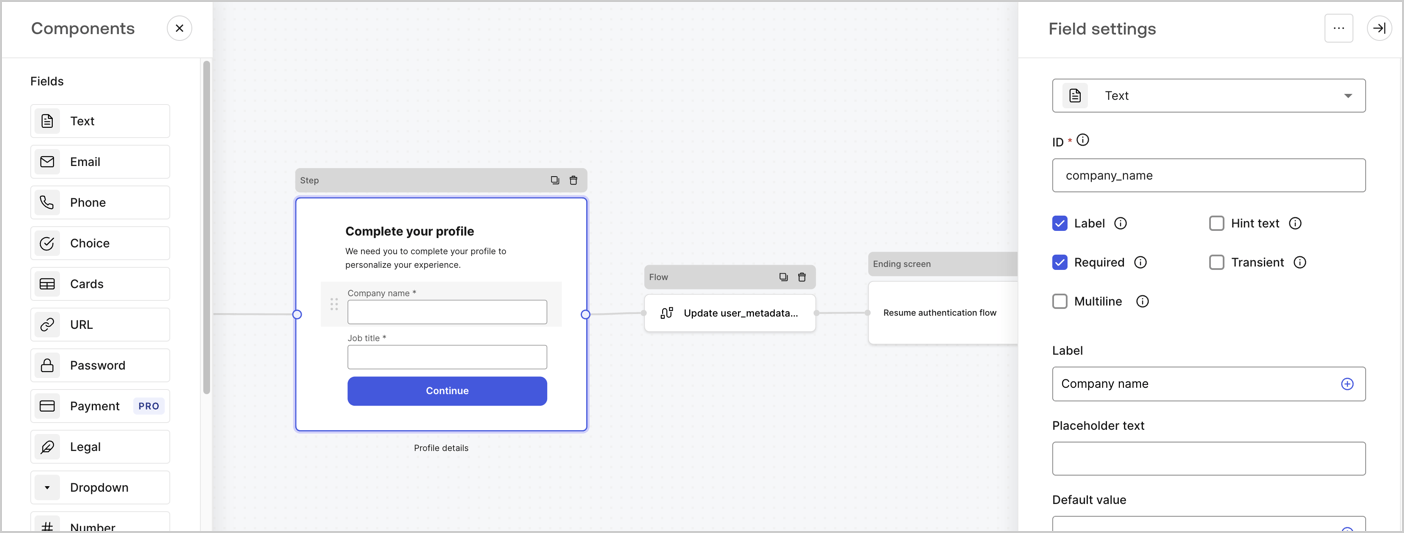
Step ノードは、ユーザーに表示されるグラフィカルインターフェースです。以下の手順に従って Step ノードに [Fields](/docs/ja-jp/customize/forms/nodes-and-components) を追加し、ユーザーの会社名と役職を収集します。

1. **Components menu** から **Rich text** フィールドを **Step** ノードにドラッグします。

   * **Rich text**: カスタムメッセージを入力します。

     * **例**: `Complete your profile! We need you to complete your profile to personalize your experience.`
   * **Save** を選択します。
2. **Text** フィールドを **Step** ノードにドラッグします。

   * **ID**: `company_name` を入力します。
   * **Label**: チェックボックスをオンにします。
   * **Label**: `Company name` を入力します。
   * **Required**: チェックボックスをオンにします。
   * **Save** を選択します。
3. **Text** フィールドを **Step** ノードにドラッグします。

   1. **ID**: `job_title` を入力します。
   2. **Label**: `Job title` を入力します。
   3. **Label**: チェックボックスをオンにします。
   4. **Required**: チェックボックスをオンにします。
   5. **Save** を選択します。
4. 保存するには、**Publish** を選択します。
<Frame>
  <img src="https://mintcdn.com/docs-dev-update-anonymous-sessons-ea/G1d5Sm0ol-yfoOMd/docs/images/cdy7uua7fh8z/6H1lRzwKyYioQyQJ9MtIoM/aa248e92fc028a68a5b92ff361a11644/progressive-profile-step.png?fit=max&auto=format&n=G1d5Sm0ol-yfoOMd&q=85&s=ff490fc183e3c8cf78249d6cb676bedf" alt="Dashboard > Actions > Forms > Form > Step node" data-og-width="1404" width="1404" data-og-height="533" height="533" data-path="docs/images/cdy7uua7fh8z/6H1lRzwKyYioQyQJ9MtIoM/aa248e92fc028a68a5b92ff361a11644/progressive-profile-step.png" data-optimize="true" data-opv="3" srcset="https://mintcdn.com/docs-dev-update-anonymous-sessons-ea/G1d5Sm0ol-yfoOMd/docs/images/cdy7uua7fh8z/6H1lRzwKyYioQyQJ9MtIoM/aa248e92fc028a68a5b92ff361a11644/progressive-profile-step.png?w=280&fit=max&auto=format&n=G1d5Sm0ol-yfoOMd&q=85&s=29ed84efa3352881242e17ff44269b4a 280w, https://mintcdn.com/docs-dev-update-anonymous-sessons-ea/G1d5Sm0ol-yfoOMd/docs/images/cdy7uua7fh8z/6H1lRzwKyYioQyQJ9MtIoM/aa248e92fc028a68a5b92ff361a11644/progressive-profile-step.png?w=560&fit=max&auto=format&n=G1d5Sm0ol-yfoOMd&q=85&s=34c380e3e82d38de1ce4fe419bd7462c 560w, https://mintcdn.com/docs-dev-update-anonymous-sessons-ea/G1d5Sm0ol-yfoOMd/docs/images/cdy7uua7fh8z/6H1lRzwKyYioQyQJ9MtIoM/aa248e92fc028a68a5b92ff361a11644/progressive-profile-step.png?w=840&fit=max&auto=format&n=G1d5Sm0ol-yfoOMd&q=85&s=2d3877d42675640daefb29c2c0c5905b 840w, https://mintcdn.com/docs-dev-update-anonymous-sessons-ea/G1d5Sm0ol-yfoOMd/docs/images/cdy7uua7fh8z/6H1lRzwKyYioQyQJ9MtIoM/aa248e92fc028a68a5b92ff361a11644/progressive-profile-step.png?w=1100&fit=max&auto=format&n=G1d5Sm0ol-yfoOMd&q=85&s=a5335d5ebaed220dacae68f88596e12b 1100w, https://mintcdn.com/docs-dev-update-anonymous-sessons-ea/G1d5Sm0ol-yfoOMd/docs/images/cdy7uua7fh8z/6H1lRzwKyYioQyQJ9MtIoM/aa248e92fc028a68a5b92ff361a11644/progressive-profile-step.png?w=1650&fit=max&auto=format&n=G1d5Sm0ol-yfoOMd&q=85&s=211122e49791b195f655c2bbe35b9da1 1650w, https://mintcdn.com/docs-dev-update-anonymous-sessons-ea/G1d5Sm0ol-yfoOMd/docs/images/cdy7uua7fh8z/6H1lRzwKyYioQyQJ9MtIoM/aa248e92fc028a68a5b92ff361a11644/progressive-profile-step.png?w=2500&fit=max&auto=format&n=G1d5Sm0ol-yfoOMd&q=85&s=4a291c3a9642c452daa73c769d261a9c 2500w" />
</Frame>

<h3 id="configure-the-flow-node">
  フローノードを設定する
</h3>

`user_metadata` を更新して認証フローを再開するために、**Step** ノードの後に **Flow** ノードを追加します。次の手順に従ってください。

1. フォームエディターの下部で **Flow** を選択します。
2. **Step** ノードと **Ending Screen** ノードの間にある既存のリンクを削除します。
3. 新しい **Flow** > **Click to add a flow** > **Create a new flow** を選択します。

   * **Name** フィールドに `Update user_metadata` と入力します。
   * **Create** を選択します。
   * **Save** を選択します。
4. 下図のように、**Flow** ノードを **Step** ノードと **Ending Screen** ノードに接続します。
5. 保存するには **Publish** を選択します。
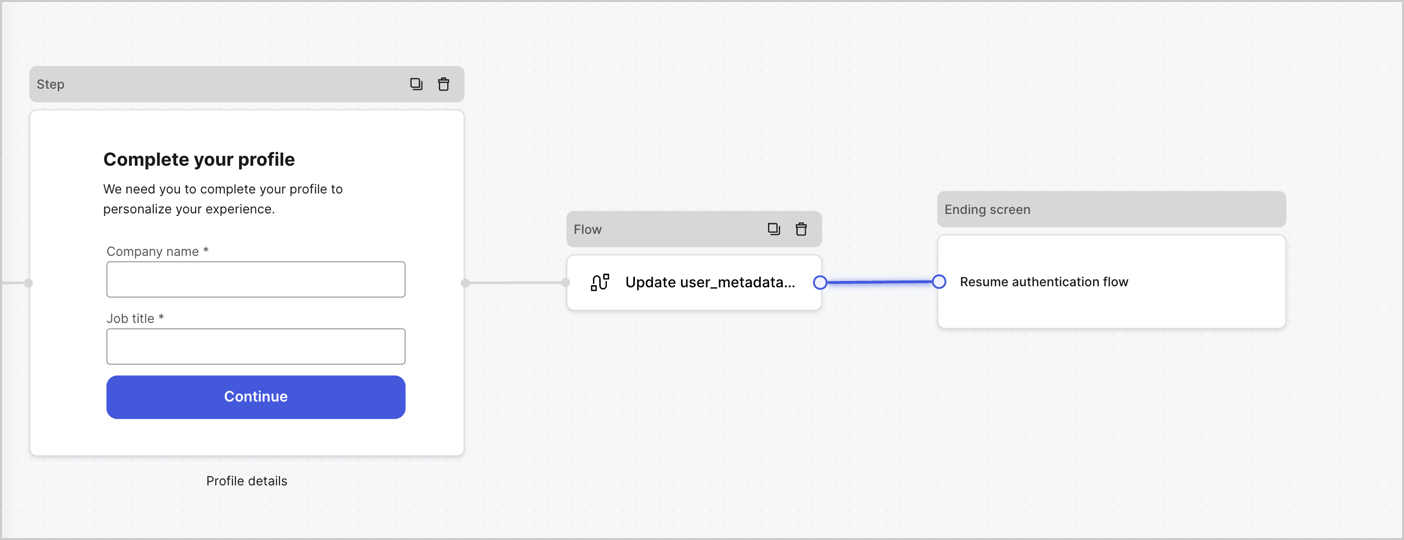
<Frame>
  <img src="https://mintcdn.com/docs-dev-update-anonymous-sessons-ea/gaGY78MREKo0SjhU/docs/images/cdy7uua7fh8z/5C91DaWn4LGtJT9BF87ssu/095171d0c452a287c44bfde12fd6d13f/link-nodes.png?fit=max&auto=format&n=gaGY78MREKo0SjhU&q=85&s=60b8186ac64734cdb163b80eb9873446" alt="Dashboard > Actions > Forms > Form" data-og-width="1404" width="1404" data-og-height="540" height="540" data-path="docs/images/cdy7uua7fh8z/5C91DaWn4LGtJT9BF87ssu/095171d0c452a287c44bfde12fd6d13f/link-nodes.png" data-optimize="true" data-opv="3" srcset="https://mintcdn.com/docs-dev-update-anonymous-sessons-ea/gaGY78MREKo0SjhU/docs/images/cdy7uua7fh8z/5C91DaWn4LGtJT9BF87ssu/095171d0c452a287c44bfde12fd6d13f/link-nodes.png?w=280&fit=max&auto=format&n=gaGY78MREKo0SjhU&q=85&s=0bf55bacfe8084adf2548c965b0ec040 280w, https://mintcdn.com/docs-dev-update-anonymous-sessons-ea/gaGY78MREKo0SjhU/docs/images/cdy7uua7fh8z/5C91DaWn4LGtJT9BF87ssu/095171d0c452a287c44bfde12fd6d13f/link-nodes.png?w=560&fit=max&auto=format&n=gaGY78MREKo0SjhU&q=85&s=02cec8e8a770ddbaa2920d38cc21d82f 560w, https://mintcdn.com/docs-dev-update-anonymous-sessons-ea/gaGY78MREKo0SjhU/docs/images/cdy7uua7fh8z/5C91DaWn4LGtJT9BF87ssu/095171d0c452a287c44bfde12fd6d13f/link-nodes.png?w=840&fit=max&auto=format&n=gaGY78MREKo0SjhU&q=85&s=d4611fa3ad0dfdbe48c27c2fec688a70 840w, https://mintcdn.com/docs-dev-update-anonymous-sessons-ea/gaGY78MREKo0SjhU/docs/images/cdy7uua7fh8z/5C91DaWn4LGtJT9BF87ssu/095171d0c452a287c44bfde12fd6d13f/link-nodes.png?w=1100&fit=max&auto=format&n=gaGY78MREKo0SjhU&q=85&s=859af6a5b482948c88564609017ce869 1100w, https://mintcdn.com/docs-dev-update-anonymous-sessons-ea/gaGY78MREKo0SjhU/docs/images/cdy7uua7fh8z/5C91DaWn4LGtJT9BF87ssu/095171d0c452a287c44bfde12fd6d13f/link-nodes.png?w=1650&fit=max&auto=format&n=gaGY78MREKo0SjhU&q=85&s=551503eaeffad484481c1792f4f0ae1c 1650w, https://mintcdn.com/docs-dev-update-anonymous-sessons-ea/gaGY78MREKo0SjhU/docs/images/cdy7uua7fh8z/5C91DaWn4LGtJT9BF87ssu/095171d0c452a287c44bfde12fd6d13f/link-nodes.png?w=2500&fit=max&auto=format&n=gaGY78MREKo0SjhU&q=85&s=42ed217d08ad48ccdad282d6db66193f 2500w" />
</Frame>

次の手順に従って、フローに Auth0 の Update user アクションを追加します。

1. **Update user\_metadata** フローを選択し、次に **Edit Flow** を選択して、新しいタブで Flow エディターを開きます。
2. **Start** アクションの下にある **+** アイコンを選択して **Update user** アクションを追加します。以下の項目を入力し、続けて **Save** を選択します。

   * **Connection**: ドロップダウンから、M2M アプリケーション用の Vault 接続を選択します。

   * **User ID**: `{{context.user.user_id}}` と入力します。

   * **Body**: 次のコードをコピー&ペーストして、`job_title` と `company_name` プロパティで `user_metadata` を更新します。

     ```json lines theme={null}
     {
        "user_metadata": {
           "job_title": "{{fields.job_title}}",
           "company_name": "{{fields.company_name}}"
        }
     }
     ```

   * **Save** を選択します。
3. 保存するには **Publish** を選択します。

<Frame>
  <img src="https://mintcdn.com/docs-dev-update-anonymous-sessons-ea/G1d5Sm0ol-yfoOMd/docs/images/cdy7uua7fh8z/65Jx4W5oIZJyyvA8z4HqIx/0661b1a8ca6361c54fc4fef07ba59f0b/update-user.png?fit=max&auto=format&n=G1d5Sm0ol-yfoOMd&q=85&s=a8c480cc9b1f913538f3b3ca3460a62a" alt="Dashboard > Actions > Forms > Flows" data-og-width="1404" width="1404" data-og-height="244" height="244" data-path="docs/images/cdy7uua7fh8z/65Jx4W5oIZJyyvA8z4HqIx/0661b1a8ca6361c54fc4fef07ba59f0b/update-user.png" data-optimize="true" data-opv="3" srcset="https://mintcdn.com/docs-dev-update-anonymous-sessons-ea/G1d5Sm0ol-yfoOMd/docs/images/cdy7uua7fh8z/65Jx4W5oIZJyyvA8z4HqIx/0661b1a8ca6361c54fc4fef07ba59f0b/update-user.png?w=280&fit=max&auto=format&n=G1d5Sm0ol-yfoOMd&q=85&s=dc2e2e375d684d675d0a3926133c9cf4 280w, https://mintcdn.com/docs-dev-update-anonymous-sessons-ea/G1d5Sm0ol-yfoOMd/docs/images/cdy7uua7fh8z/65Jx4W5oIZJyyvA8z4HqIx/0661b1a8ca6361c54fc4fef07ba59f0b/update-user.png?w=560&fit=max&auto=format&n=G1d5Sm0ol-yfoOMd&q=85&s=34721394b45870e2f448bb407af4ddf5 560w, https://mintcdn.com/docs-dev-update-anonymous-sessons-ea/G1d5Sm0ol-yfoOMd/docs/images/cdy7uua7fh8z/65Jx4W5oIZJyyvA8z4HqIx/0661b1a8ca6361c54fc4fef07ba59f0b/update-user.png?w=840&fit=max&auto=format&n=G1d5Sm0ol-yfoOMd&q=85&s=cd2d7a72471ce301be5afa4e5abcb517 840w, https://mintcdn.com/docs-dev-update-anonymous-sessons-ea/G1d5Sm0ol-yfoOMd/docs/images/cdy7uua7fh8z/65Jx4W5oIZJyyvA8z4HqIx/0661b1a8ca6361c54fc4fef07ba59f0b/update-user.png?w=1100&fit=max&auto=format&n=G1d5Sm0ol-yfoOMd&q=85&s=36000c1886cc92a7f6850dfb0749b95c 1100w, https://mintcdn.com/docs-dev-update-anonymous-sessons-ea/G1d5Sm0ol-yfoOMd/docs/images/cdy7uua7fh8z/65Jx4W5oIZJyyvA8z4HqIx/0661b1a8ca6361c54fc4fef07ba59f0b/update-user.png?w=1650&fit=max&auto=format&n=G1d5Sm0ol-yfoOMd&q=85&s=ee8f2026a084f0484378edff0b11cb01 1650w, https://mintcdn.com/docs-dev-update-anonymous-sessons-ea/G1d5Sm0ol-yfoOMd/docs/images/cdy7uua7fh8z/65Jx4W5oIZJyyvA8z4HqIx/0661b1a8ca6361c54fc4fef07ba59f0b/update-user.png?w=2500&fit=max&auto=format&n=G1d5Sm0ol-yfoOMd&q=85&s=22015f84d0e10fcea074d03cf2975833 2500w" />
</Frame>

<h3 id="retrieve-the-form-render-code">
  フォームのレンダリングコードを取得する
</h3>

次の手順に従って、カスタムの Post Login Action でフォームを視覚的にレンダリングするためのレンダリングコードを取得します。

* フォームエディターで、**`<> Render`** を選択します。
* **Copy** を選択します。
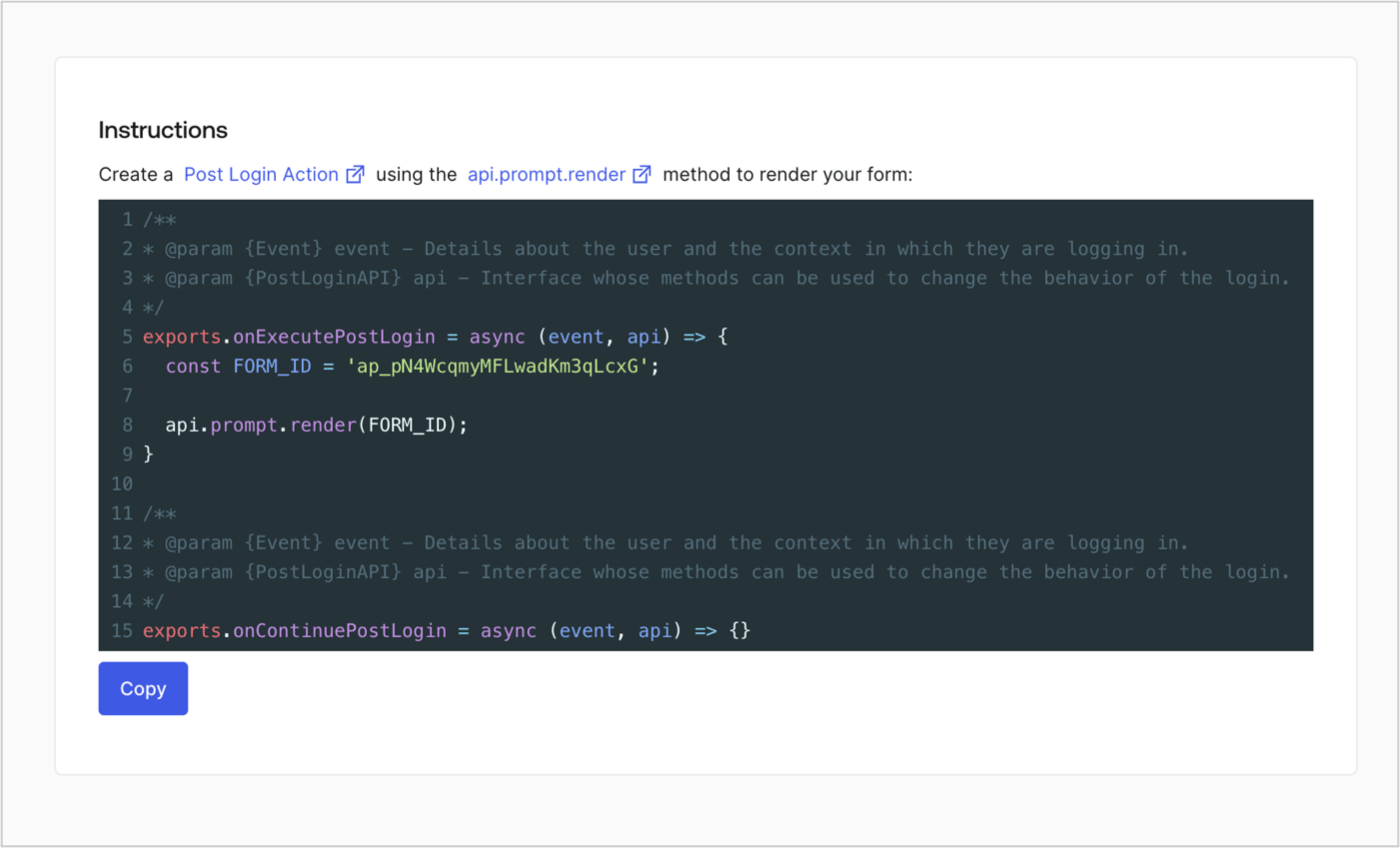
<Frame>
  <img src="https://mintcdn.com/docs-dev-update-anonymous-sessons-ea/itgJjKWPZWQ8PNK-/docs/images/cdy7uua7fh8z/2EIUzc539sq9lwoTKbjoJv/496a864c0fc44a782c9cadca119dbfb0/embed.png?fit=max&auto=format&n=itgJjKWPZWQ8PNK-&q=85&s=439a20b83a2a20fc70a456aa45be0c21" alt="Dashboard > Actions > Forms > Form > Embed" data-og-width="1400" width="1400" data-og-height="848" height="848" data-path="docs/images/cdy7uua7fh8z/2EIUzc539sq9lwoTKbjoJv/496a864c0fc44a782c9cadca119dbfb0/embed.png" data-optimize="true" data-opv="3" srcset="https://mintcdn.com/docs-dev-update-anonymous-sessons-ea/itgJjKWPZWQ8PNK-/docs/images/cdy7uua7fh8z/2EIUzc539sq9lwoTKbjoJv/496a864c0fc44a782c9cadca119dbfb0/embed.png?w=280&fit=max&auto=format&n=itgJjKWPZWQ8PNK-&q=85&s=50e74caebda5f9465e1cb4289421f0b9 280w, https://mintcdn.com/docs-dev-update-anonymous-sessons-ea/itgJjKWPZWQ8PNK-/docs/images/cdy7uua7fh8z/2EIUzc539sq9lwoTKbjoJv/496a864c0fc44a782c9cadca119dbfb0/embed.png?w=560&fit=max&auto=format&n=itgJjKWPZWQ8PNK-&q=85&s=301385866821a11a2b1b1970ea1bbac1 560w, https://mintcdn.com/docs-dev-update-anonymous-sessons-ea/itgJjKWPZWQ8PNK-/docs/images/cdy7uua7fh8z/2EIUzc539sq9lwoTKbjoJv/496a864c0fc44a782c9cadca119dbfb0/embed.png?w=840&fit=max&auto=format&n=itgJjKWPZWQ8PNK-&q=85&s=a430ab1bff434ee8103d04ba0d1f9495 840w, https://mintcdn.com/docs-dev-update-anonymous-sessons-ea/itgJjKWPZWQ8PNK-/docs/images/cdy7uua7fh8z/2EIUzc539sq9lwoTKbjoJv/496a864c0fc44a782c9cadca119dbfb0/embed.png?w=1100&fit=max&auto=format&n=itgJjKWPZWQ8PNK-&q=85&s=a0551b156ad62f3937117d9bf62f4727 1100w, https://mintcdn.com/docs-dev-update-anonymous-sessons-ea/itgJjKWPZWQ8PNK-/docs/images/cdy7uua7fh8z/2EIUzc539sq9lwoTKbjoJv/496a864c0fc44a782c9cadca119dbfb0/embed.png?w=1650&fit=max&auto=format&n=itgJjKWPZWQ8PNK-&q=85&s=172ebf2798174dc4b166adba5c24fa0a 1650w, https://mintcdn.com/docs-dev-update-anonymous-sessons-ea/itgJjKWPZWQ8PNK-/docs/images/cdy7uua7fh8z/2EIUzc539sq9lwoTKbjoJv/496a864c0fc44a782c9cadca119dbfb0/embed.png?w=2500&fit=max&auto=format&n=itgJjKWPZWQ8PNK-&q=85&s=d8ede996b0542ba2cb53b71556930678 2500w" />
</Frame>

<h2 id="create-a-post-login-action">
  Post Login Action を作成する
</h2>

以下の手順で、フォームを表示する post-login Action を作成します。

1. **Auth0 Dashboard > Actions > Flows > Login** に移動します。
2. **+** アイコンを選択し、**Build from scratch** を選択します。

   * **Name**: `Render Progressive Profile Form` と入力します。
   * **Trigger**: `Login / Post Login` を選択します。
   * **Runtime**: 推奨バージョンを選択します。
3. **Create** を選択します。

post-login Action を設定するには、次の手順に従います。

1. Code editor から既存のコードを削除します。
2. フォームの埋め込みコードを Code editor に貼り付けます。
3. フォームを表示する条件ロジックを定義するようにコードを編集します。

   ```javascript lines theme={null}
   /**
   * @param {Event} event - ユーザーおよびログイン時のコンテキストに関する詳細。
   * @param {PostLoginAPI} api - ログインの動作を変更するために使用できるメソッドを備えたインターフェース。
   */
   exports.onExecutePostLogin = async (event, api) => {
     const FORM_ID = 'REPLACE_WITH_YOUR_FORM_ID';

     if (
       event.stats.logins_count > 2 &&
       !event.user.user_metadata.company_name &&
       !event.user.user_metadata.job_title
     ) {
       api.prompt.render(FORM_ID);
     }
   }

   exports.onContinuePostLogin = async (event, api) => { }
   ```

   <Callout icon="file-lines" color="#0EA5E9" iconType="regular">
     上記のコード例では、ユーザーのログイン回数が 2 回を超えており、ユーザー metadata の `company_name` と `job_title` プロパティがない場合にフォームが表示されます。
   </Callout>
4. **Deploy** を選択します。
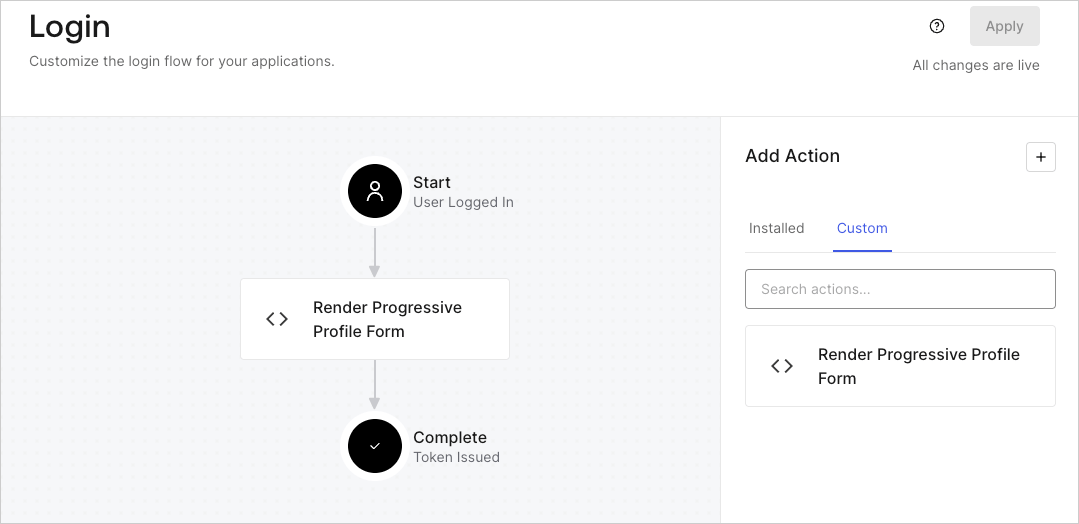
5. **Render Progressive Profile Form** Action を **Login** フローにドラッグ＆ドロップします。

   <Frame>
     <img src="https://mintcdn.com/docs-dev-update-anonymous-sessons-ea/czdjV-SUOhULdyD1/docs/images/cdy7uua7fh8z/1QjjZdpTqTxx012UDN4xk9/99fba5ef4068a5688f1762eea7f42976/renderprogessiveprofile.png?fit=max&auto=format&n=czdjV-SUOhULdyD1&q=85&s=36be32cdb4c2832b1d802953534e9a5f" alt="Dashboard > Forms > Use Cases Progressive Profile Login Action" data-og-width="1079" width="1079" data-og-height="524" height="524" data-path="docs/images/cdy7uua7fh8z/1QjjZdpTqTxx012UDN4xk9/99fba5ef4068a5688f1762eea7f42976/renderprogessiveprofile.png" data-optimize="true" data-opv="3" srcset="https://mintcdn.com/docs-dev-update-anonymous-sessons-ea/czdjV-SUOhULdyD1/docs/images/cdy7uua7fh8z/1QjjZdpTqTxx012UDN4xk9/99fba5ef4068a5688f1762eea7f42976/renderprogessiveprofile.png?w=280&fit=max&auto=format&n=czdjV-SUOhULdyD1&q=85&s=9d463cf3876052a82c2eac21aa3b7bc3 280w, https://mintcdn.com/docs-dev-update-anonymous-sessons-ea/czdjV-SUOhULdyD1/docs/images/cdy7uua7fh8z/1QjjZdpTqTxx012UDN4xk9/99fba5ef4068a5688f1762eea7f42976/renderprogessiveprofile.png?w=560&fit=max&auto=format&n=czdjV-SUOhULdyD1&q=85&s=04bb68e5ec819a435083d62bf5e40336 560w, https://mintcdn.com/docs-dev-update-anonymous-sessons-ea/czdjV-SUOhULdyD1/docs/images/cdy7uua7fh8z/1QjjZdpTqTxx012UDN4xk9/99fba5ef4068a5688f1762eea7f42976/renderprogessiveprofile.png?w=840&fit=max&auto=format&n=czdjV-SUOhULdyD1&q=85&s=37549c3c87e3666c1b08d6d99bfd53f9 840w, https://mintcdn.com/docs-dev-update-anonymous-sessons-ea/czdjV-SUOhULdyD1/docs/images/cdy7uua7fh8z/1QjjZdpTqTxx012UDN4xk9/99fba5ef4068a5688f1762eea7f42976/renderprogessiveprofile.png?w=1100&fit=max&auto=format&n=czdjV-SUOhULdyD1&q=85&s=e367c9f22da53e5dbbc0886f9091a5d5 1100w, https://mintcdn.com/docs-dev-update-anonymous-sessons-ea/czdjV-SUOhULdyD1/docs/images/cdy7uua7fh8z/1QjjZdpTqTxx012UDN4xk9/99fba5ef4068a5688f1762eea7f42976/renderprogessiveprofile.png?w=1650&fit=max&auto=format&n=czdjV-SUOhULdyD1&q=85&s=dc14bb45c33ddfcf1dd393ae19284f87 1650w, https://mintcdn.com/docs-dev-update-anonymous-sessons-ea/czdjV-SUOhULdyD1/docs/images/cdy7uua7fh8z/1QjjZdpTqTxx012UDN4xk9/99fba5ef4068a5688f1762eea7f42976/renderprogessiveprofile.png?w=2500&fit=max&auto=format&n=czdjV-SUOhULdyD1&q=85&s=06355ba431f28c1a74acc02a39b44ee7 2500w" />
   </Frame>
6. **Apply** を選択します。

<h3 id="test-implementation">
  実装のテスト
</h3>

次の手順で実装をテストします。

1. ログイン回数が 2 回を超えていて、`user_metadata` 属性の `company_name` と `job_title` に値が設定されていない既存ユーザーでログインします。
2. Login フローの Post Login Action によってフォームが表示され、情報の入力を求められます。
3. **Auth0 Dashboard > User Management > Users** を選択し、該当するユーザーを見つけて、`user_metadata` 属性の `company_name` と `job_title` に情報が含まれていることを確認します。